
A family account inventory is a short, secure directory of the online services your household depends on: who manages each account, which email identifies it, and where an authorized family member can find the proper access or recovery instructions. You do not need to catalog every shopping login tonight. Start with the accounts that would cause real trouble if the person who normally handles them were unavailable.
I would rather have twelve useful entries that Ben can understand than a beautiful spreadsheet containing eighty forgotten passwords. That distinction took me longer to learn than it should have.
The Snowy Night That Changed What I Kept on Our List
During a bitter Cleveland cold spell, a pipe in our house began leaking. I was out of town with my mother for her cataract surgery, and my phone had run out of power. Ben needed information from our water utility account while he dealt with the problem at home.
The account was attached to an old Yahoo address I had used years earlier. Getting through the login and verification process depended on information Ben could not readily access. He eventually shut off the main water valve himself. It was an uncomfortable reminder that knowing how to repair a physical problem and knowing how to access the account connected to it are two separate things.
The lesson was not that we should share every password. It was that our household depended too heavily on one person's memory. In my previous IT support work at a healthcare network, I dealt with identity and access management. At home, I had failed a simpler test: could the other adult locate the account, understand who controlled it, and know what to do next?
The first inventory I would want during a problem like that contains the utility name, account holder, service contact details, login email, and approved recovery path—not a password scribbled beside the kitchen calendar.
What Goes Into a Family Account Inventory?
I separate account discovery from credential storage. The inventory tells us that an account exists and who owns it; a password manager or another properly secured method handles passwords and recovery secrets. That separation limits what gets exposed if someone sees the list.
For each essential service, I record these fields:
Field | What to write |
|---|---|
Service | Water utility, school portal, bank, cloud storage |
Account owner | Lauren, Ben, or a clearly named responsible adult |
Login identifier | The email address or username used to sign in |
Where to access it | Official website or app name, not an unverified link |
Access arrangement | Who is authorized; where access instructions are securely kept |
Recovery clue | Recovery method category, never a full recovery code |
Last checked | Month and year of the most recent review |
This is an online account management tool, not an excuse to consolidate confidential information into an unprotected spreadsheet. I never put passwords, backup codes, Social Security numbers, card numbers, or children's medical details in the inventory.
A simple list also helps when you need to organize online accounts across Apple, Google, school portals, and services billed to different adults. In our house, my MacBook Air and iPhone do not magically make Ben's Pixel or Maya's school Chromebook behave like Apple devices. An account directory should work regardless of which screen happens to be available.

The Actual 30-Minute Process
Put a timer where you can see it. I use a short session because the promise of a complete digital cleanup is how a manageable chore becomes a lost Saturday. You are building a useful first version, not conducting an audit of every account you opened since college.
Minutes 0–5: Choose one secure home for the list
Create a document in a location both authorized adults can reach, with access restricted to the right people. Google Drive may be practical for a mixed-device household, provided you check the sharing permissions. If you prefer a local encrypted document or secure notes system, use that instead. Do not share the inventory with an unrestricted link.
Name it something obvious, such as Household Account Directory. Add a review date. Decide whether Ben can see it directly or whether he will have separate instructions for finding an emergency copy. A file that only one person can locate defeats the point.
Minutes 5–15: List the accounts that keep the household running
Start with categories, not individual apps. My first pass would cover:
Home and utilities: water, electricity, gas, internet, property-related services.
Money and coverage: banking access arrangements, insurance, and payment services.
Health and family: patient portals, school systems, childcare or activity registrations.
Identity and communications: primary email accounts, phone providers, Apple and Google accounts.
Storage and recovery: the cloud services that hold important records or photos.
Write only what you already know. For Maya's school services, I would identify the parent-managed portal and the adult responsible for permissions; I would not collect her passwords simply because she is twelve. I would handle Owen's tablet controls with the same care.
Do not sign in to every account yet. This ten-minute block is about discovering the most important services, not changing their security settings.
Minutes 15–23: Find the forgotten essentials
If you are trying to find old online accounts, search your own email inbox for phrases such as “welcome,” “verify your email,” “account created,” “monthly statement,” and “receipt.” Search service names you remember. Bank statements can reveal recurring payments, although a charge does not always tell you which login email was used.
To understand how to find all accounts linked to my email, avoid trusting websites that promise a universal account list. There is no reliable single screen that enumerates every service you have ever registered with. Your email archives, saved login entries, subscription receipts, and individual providers' account settings are more practical clues. Check browser or password-manager saved logins only on devices and accounts you are authorized to inspect.
When you find a service, enter its name and owner. Mark uncertain details Needs Check. Do not reset a password merely to fill an empty cell.
Minutes 23–30: Make the list usable by someone else
Ask the other adult to locate three entries without coaching: the water utility, the main household insurance service, and one school or healthcare portal. Can they tell who owns the account? Can they find the official contact route? Do they know where approved access instructions live?
If any answer is no, fix the label or access arrangement—not the entire filing system. Finish by listing one or two follow-up tasks, such as updating a recovery email or reviewing an old Yahoo account. Those can wait for a separate session.
What I Keep Out—and Why
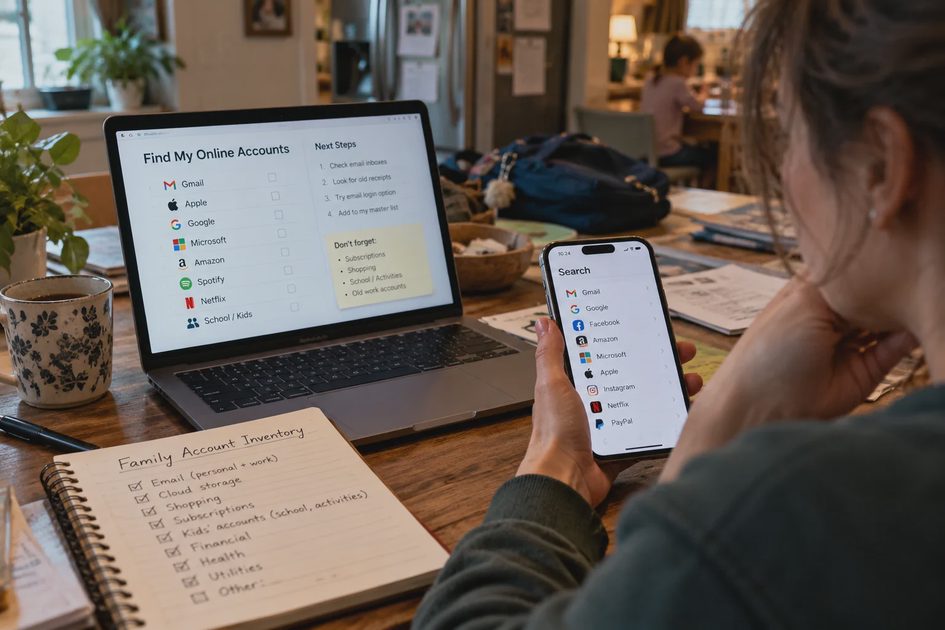
One of the easiest mistakes in digital account inventory planning is turning a directory into a master key. A spreadsheet containing every username, password, recovery code, and financial account detail can create a serious concentration of risk.
I keep three layers distinct. The directory identifies a service and its owner. Credentials remain in a suitable protected password-management system. Critical offline recovery instructions, where appropriate, belong in a secure physical location that authorized adults know how to access. In our household's planned system, the small SentrySafe box is for important originals and emergency materials, not for a casually accessible printed password dump.
There is also a practical limit: possession of a family list does not grant someone legal authority to enter a bank, medical, or employment account. Use official joint-access, delegated-access, or emergency-contact features where available. Ben's employer-issued ThinkPad is not where I would store our private household directory.
A Tiny Example You Can Copy
Here is a deliberately fictional example with no real account identifiers. It illustrates what a good first entry should accomplish.
Service | Owner | Login email | Access route | Follow-up |
|---|---|---|---|---|
City water utility | Adult A | Household utility email | Official utility website; contact number on bill | Confirm Adult B's authorized access |
School parent portal | Adult B | Parent email | School's official portal | Check recovery email |
Family cloud storage | Adult A | Primary Apple/Google ID | Protected account instructions | Confirm backup owner |
Notice what is missing: passwords and secret answers. A family password manager may complement this directory, especially when legitimate sharing is supported, but the directory remains useful even if your family chooses a different credential solution.
Keep It Useful With a Five-Minute Check
I would not redo this list every Sunday. During my usual 8:30 p.m. fifteen-minute household reset, I can simply note whether we opened a new essential account, changed an email address, or canceled a service. Once a quarter, I would ask Ben to repeat the three-entry location test.
If a list becomes so detailed that keeping it current feels like another job, shrink it. A family directory should help when someone is tired, away from home, or dealing with a leaking pipe. It is not a contest to document the internet.
Start with one small fix: today, create the directory and write down the names and owners of your water, primary email, and insurance accounts. Then make sure another authorized adult can find those three entries without asking you where to click.
No letters yet — be the first to write.