Digital organization became easier when I stopped treating my family like an IT department.
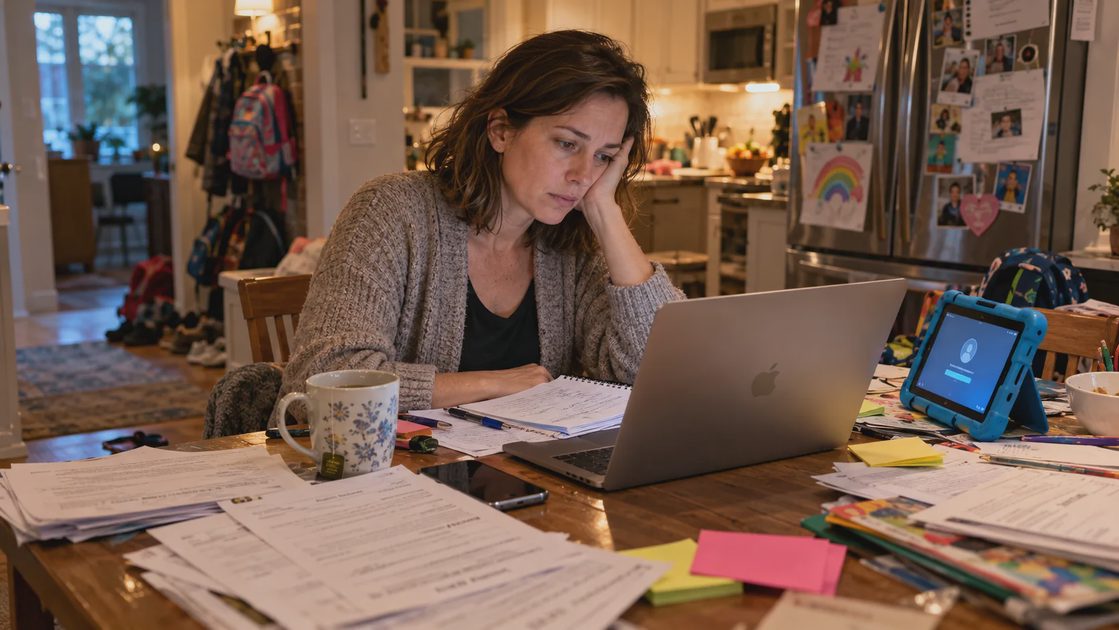
We needed one place for incoming information, a simple way to put it away, and a few minutes to check that we could find it again. The turning point was not a new app. It was a crowded kitchen table during Maya's first week of middle school.
I spent eleven years working in IT support and systems administration for a healthcare network. I understood access permissions, recovery procedures, and orderly folders. Yet at home, those skills had gradually produced a system that made perfect sense to me and very little sense to the people who actually needed to use it.
The school week that changed my mind
When Maya started middle school, our kitchen table filled with paper forms. I had four separate pages open: the middle-school portal, the elementary-school parent system, a children's health insurance site, and an extracurricular payment page. Owen was upset because he couldn't sign into a lesson on his tablet. Each task was small. Together they were a mess.
My instinct was to build a more detailed folder tree, write stricter naming rules, and give everyone instructions. That was how I had approached complicated work systems. But Ben wasn't another systems administrator, and the children certainly hadn't volunteered to become one. If the family needed me to explain where every document lived, my supposedly organized system had failed its most important test.
The lesson wasn't that professional IT practices are useless at home. It was that a family needs reliable access without a training manual. I began thinking about our digital chores the way we think about laundry: items arrive, we put them where they belong, and we check again next week. Nobody expects the laundry to be finished forever.
Why my work experience led me in the wrong direction
In a healthcare environment, identity and access management matters enormously. People need the right access, former accounts must be handled carefully, and disaster recovery procedures need testing. My helpdesk experience also taught me that even highly educated professionals struggle when routine tools demand too much memory or too many steps.
I brought the careful part of that work home, which was useful. Then I brought home too much complexity, which wasn't. Our household includes my MacBook Air and iPhone 15, Ben's Pixel 7, Maya's school Chromebook, and Owen's Fire tablet. Ben also has a work ThinkPad, but that isn't our family filing cabinet. One elaborate system built around my preferred device was never going to suit everybody.
My rule now is simple: complexity is the enemy of maintenance. If Ben cannot locate a school form while I am unavailable, the answer is not another color-coded subfolder. The answer is usually fewer decisions between him and the file.
The three-step housekeeping method
The method I settled on uses three verbs: Capture → Put Away → Check. They are deliberately ordinary. I don't want someone to learn a productivity framework just to find a permission slip.
Step | What I do | How I know it worked |
|---|---|---|
Capture | Give new documents, renewal notices, and account tasks a predictable landing place | Nothing important depends on remembering which text or inbox held it |
Put Away | Move the item to one clearly named location | Another authorized person can navigate to it |
Check | Open the file, confirm access, or verify the backup or renewal date | The item is usable, not merely tidy |
For example, if Maya needs a sports waiver, I wouldn't start by rearranging our entire Google Drive. I would save the current form in the appropriate family school folder, confirm that the person submitting it has access, and keep sensitive health information restricted. The process is finished when the form can be used, not when I have invented the perfect filename.
Our shared documents live in Google Drive because it works across the devices we use. Apple cloud storage is useful for the Apple side of our household, but it doesn't make every Pixel and school Chromebook behave like an iPhone. Good digital decluttering reduces friction between people, not just clutter on one screen.
Four small chores I stopped turning into projects
Once I stopped aiming for a perfect digital house, I could give common problems a reasonable stopping point.
Photos: check the backup before clearing space
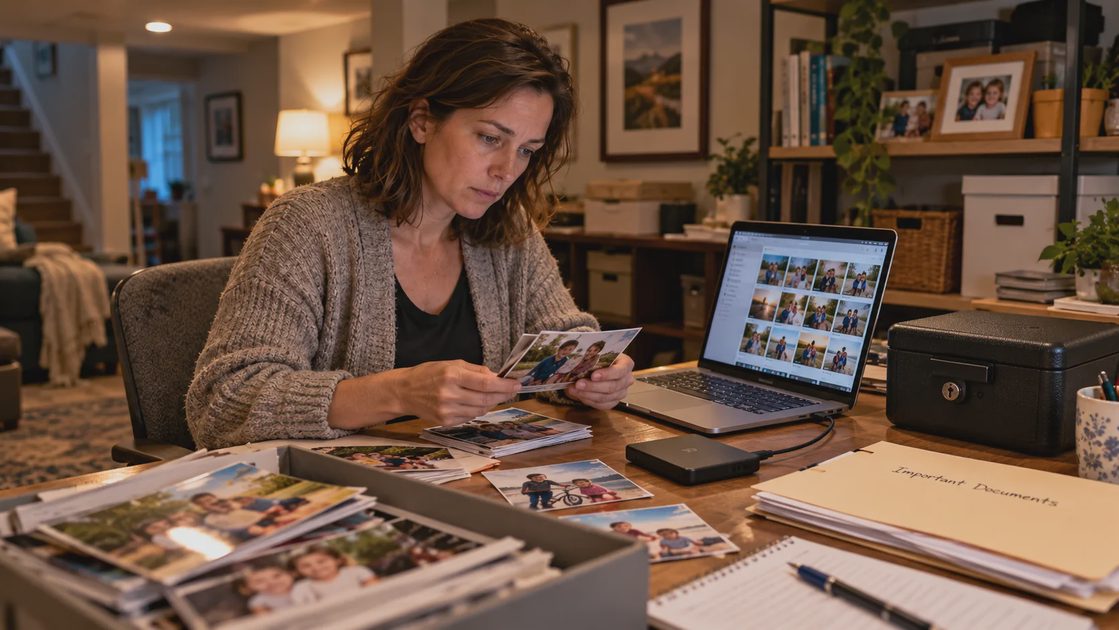
The difference between synchronization and backup is personal to this family's story. When Owen was two, I deleted more than 800 photos while trying to clear space on my iPhone, then emptied Recently Deleted. I had mistaken a synced library for an independent safety copy. Some images were recovered, but not every original came back in full quality.
That experience changed the order of my advice. When someone asks how to free up storage on iPhone, I begin with checking storage usage and independent photo copies, not mass deletion. If you're researching how to remove duplicate photos on iPhone, review suggested duplicates carefully before merging or deleting them. Similar pictures are not always interchangeable, especially when they're family memories. Recovery after permanent deletion is not something to count on.
Our photo routine includes iCloud syncing and an offline WD My Passport archive. An annual export, however, leaves a gap between copies. For irreplaceable new photos, I'd arrange an additional independent backup sooner rather than assume that once-a-year archiving is sufficient.
Documents: make the handoff obvious
School forms and practical household paperwork need an obvious home. If you're learning how to upload documents to Google Drive, the upload is only half the task: check the folder and permissions from the other person's perspective. I wouldn't put medical records in a broadly shared folder merely because sharing is convenient.
A basic filename such as 2026-2027_School-Waiver.pdf is usually enough. If a complicated naming system requires everyone to look up the rules, I've recreated the problem I'm trying to solve.
Email: label the mail you actually revisit
I keep inbox organization deliberately modest. Someone searching how to make folders in Gmail will find that Gmail uses labels, not conventional single-location folders. For household purposes, a few labels such as School, Bills, and Action Needed can be more useful than a category for every teacher and subscription.
I would skip a new label if I couldn't name a real task it would make easier next week.
Subscriptions: give each charge an owner
Ben takes the lead on everyday bills and household subscriptions. My job is to make sure our digital records don't depend on either of us remembering every account. If the goal is how to save money on subscriptions, I start with the payment statements and renewal notices: which service is this, who controls it, and do we still need it?
I wouldn't cancel shared storage simply because the number looks high. First I'd check what happens to family access and stored files. Saving a few dollars is not worth causing a preventable data problem.
The fifteen minutes I reserve on Sunday

My weekly reset belongs to a very ordinary time: Sunday, 8:30 to 8:45 p.m., after the children have gone to bed. Downstairs, the dryer is running; in the kitchen, I make peppermint or chamomile tea. I don't use those fifteen minutes to overhaul our digital lives. I use them to keep small, unfinished chores from becoming next month's emergency.
Here is the digital declutter checklist I use as a practical structure:
Minutes 0–3 — Capture. Gather one school form, renewal notice, or account task that landed in the wrong place.
Minutes 3–7 — Put away. File or rename the most useful item. Don't reorganize unrelated folders.
Minutes 7–11 — Check. Confirm one important document opens, one account owner is recorded, or one separate backup can be accessed.
Minutes 11–15 — Hand off. Write down anything Ben or I still need to handle, then stop.
Those minute blocks are a planning guide, not a measured productivity result. Sometimes a single account issue needs its own longer session. The whole point of a maintenance routine is knowing what to postpone safely.
What I deliberately keep imperfect
I don't believe in deleting everything old, forcing all records into an elaborate app, or making a household completely paperless. Important originals and selected emergency information have a physical place in our SentrySafe box. Day-to-day files are easier to access in the cloud. A separate drive provides another layer, though a drive stored in our basement cannot protect against every disaster affecting the house.
This is a compromise, not a flawless architecture. The more serious a document or photo is, the more carefully I consider access, retention, and recovery. Digital minimalism isn't worth losing a record your family may need later.
If you want to organize your digital life, don't begin with a grand cleanup. Choose one item somebody else might need this month. Give it a clear home and confirm that the right person can find and open it. That's the kind of small fix I can defend both as an IT-minded organizer and as a parent standing at a crowded kitchen table.
No letters yet — be the first to write.