You do not have to sort ten years of family photos before protecting them. Start with an independent copy of what you already have, check that you can open a few pictures from it, and organize the collection later. A family photo backup system should work even when the camera roll is a mess.
I learned the importance of that distinction through an episode in our family's photo history that I would rather not repeat. When Owen was two, I tried to clear the “storage full” warning on my iPhone. I deleted more than 800 pictures, then emptied Recently Deleted, thinking that the copies in the cloud would remain untouched. They did not. I had confused syncing with backing up.
We recovered much of what was missing using data-recovery tools, but some of the high-resolution originals were never recovered; for roughly three months, only blurry thumbnails remained. That experience informs the system I recommend here. It also explains why I do not begin by telling parents to rename every file or delete every duplicate.
The mistake: treating a synced photo library as a second backup
A photo library that looks identical on two devices feels safe. Sometimes it is simply two windows into the same collection. With services such as iCloud Photos, deleting a picture on one synced device can remove it from the synced library elsewhere. A Recently Deleted folder may provide a limited recovery window, but it is not a substitute for an independent copy.
When I work through a family setup, I separate three jobs:
Syncing: keeps a current library available across devices.
Backing up: preserves a separate, recoverable copy if the working library is altered or lost.
Organizing: makes pictures easier to find, share, and enjoy.
Those jobs overlap, but they are not interchangeable. Organizing helps later; backup protection comes first. I would rather safeguard a folder called Phone Photos — Unsorted today than spend six weekends producing a beautiful album with no recovery plan.
Build around the devices your family actually uses
Our household is a good reminder that family photos do not always live in a single ecosystem. I use an iPhone 15 and MacBook Air. Ben carries a Google Pixel 7, and our children use school and family devices for different tasks. We use shared iCloud storage in the Apple side of the household, Google Drive for certain family documents, and a 4TB WD My Passport drive for an offline photo archive.
I would not pretend that sharing an Apple storage plan automatically backs up photos taken on Ben's Pixel. Each device needs an explicit route into the protected collection. Google Drive is useful for documents and selected exports, but uploading a few pictures there does not automatically protect an entire phone library.
Start with a small source list, rather than a giant sorting project:
Photo source | First question | Safe next action |
|---|---|---|
iPhone and Mac | Is iCloud Photos syncing, and is there an independent export? | Confirm sync; copy originals to separate storage |
Pixel or other Android phone | Which photo backup service or local export is enabled? | Confirm the correct account; export or download independently |
Old phone, SD card, or computer | Are these files already in the main archive? | Copy before deleting or resetting anything |
Shared folders and messaging apps | Are these full-size originals or compressed copies? | Locate original files when available |
The list is deliberately plain. I do not need every picture's date or event before I can identify where it might disappear from.
A minimum viable family photo backup system
I recommend thinking in layers. One layer is convenient; another should remain separate from the synced library; a third protects against losing the first two in the same incident.
Layer 1: Keep the everyday library usable
Leave your existing photo-sync service in place if it suits the family. Before making changes, confirm the account, storage capacity, and whether syncing has finished. A cloud icon or a folder name is not proof that every original has been uploaded. Check the service's own status and inspect several older pictures.
On our Apple devices, iCloud Photos serves as an everyday library. The goal is convenient access, not pretending it is an untouched historical archive. I avoid large-scale deletions during setup, especially when a phone reports low storage. If storage is urgent, I would verify a separate copy before removing media.
Layer 2: Make an independent copy of the originals
For an Apple photo library, use a supported export or download method that preserves the originals where possible. For Android photos, check whether the originals are on the phone, in a cloud photo service, or both, and download or copy them to a separate folder. Do not assume that dragging a thumbnail or sharing an image through a messaging app preserves full resolution and metadata.
I would create a top-level folder like this:
Family-Photos-Archive/
  iPhone-Export-2026-10/
  Pixel-Export-2026-10/
  Old-Devices-To-Review/
The date records the export batch, not necessarily when the photos were taken. Keep the original files intact. If a transfer stops midway, finish or repeat it before marking the batch complete. Compare approximate file counts and total size with the source, understanding that formats and cloud-only items can make a perfect match impossible.
Layer 3: Keep another copy in a different place
One external hard drive is better than no independent copy, but it can fail, be misplaced, or be damaged in the same home incident as your computer. A more resilient approach keeps an additional copy off-site or in a separate backup service with recovery or version-history features. For irreplaceable family memories, the familiar 3-2-1 backup rule—three copies, two kinds of storage, one off-site—is a useful planning model, not a guarantee.
Our WD drive is used for periodic offline archiving. Its annual photo export is a useful longer-term record, but annual-only exports leave a long gap for newly taken pictures. I would pair that archive with a more frequent independent copy or a separate, appropriately configured backup service. Keep an offline drive disconnected when it is not being used, and consider encryption if it contains sensitive family files. Store the recovery information somewhere you can find it.
The five-minute restore check most families skip
Having a backup is a claim. Opening a file from it is evidence that at least that file is readable. I prefer a small restore check to a reassuring green icon.
Disconnect from or close the original photo library so you are not accidentally viewing the same synced file.
Open the independent backup location and choose an older photo, a recent photo, and a short video.
Copy those files into a temporary folder on another device or location.
Open each one, inspect the full image or play the video, and check that the expected quality is present.
Record the test date and any missing batches. Keep the backup files unchanged.
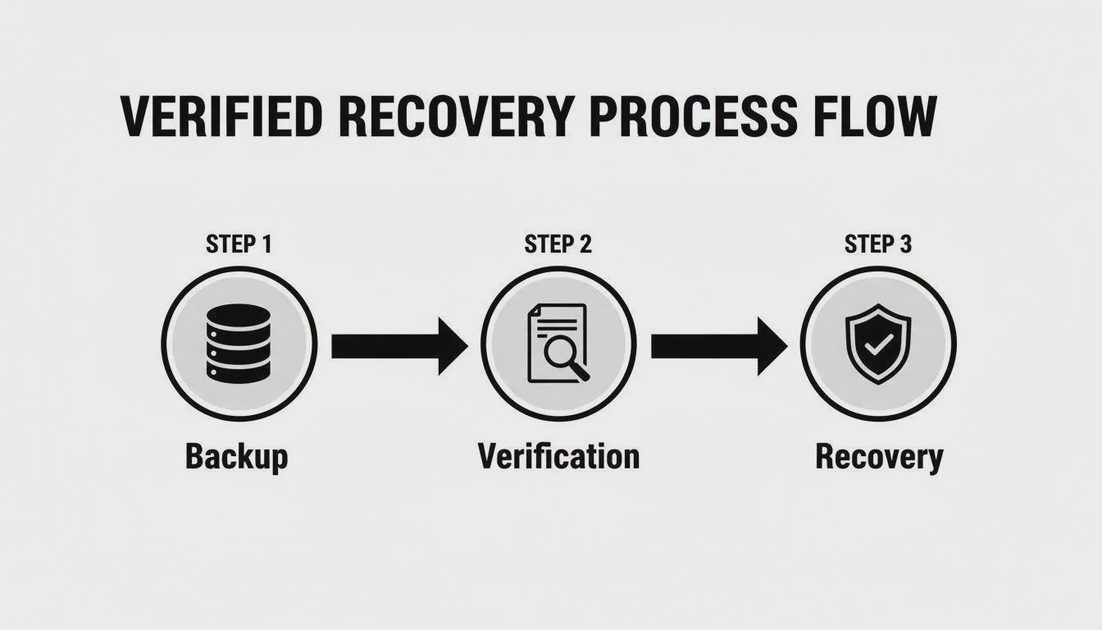
This does not prove that every photo can be recovered. It does reveal obvious problems such as an unreadable drive, missing folder, corrupted sample, or a backup that contains previews instead of the originals. If one sample fails, I stop cleanup and investigate before trusting that copy.
What can wait until next weekend
Once independent copies exist, you can decide how to organize family photos without racing a storage warning. I would postpone elaborate album structures, renaming thousands of files, and deleting look-alike shots until protection is checked. Those are finding and housekeeping tasks, not prerequisites for safety.
There is also a practical compromise. Multiple copies take storage space and occasional maintenance. If your household cannot manage a complicated three-service arrangement, begin with one verified independent copy and a calendar reminder to improve it. Do not mistake that starter setup for complete disaster protection. An imperfect system that gets checked is a better beginning than a sophisticated plan nobody finishes.
For busy parents, I would schedule a short monthly check of recent photo coverage and a periodic restore test, then handle the older archive on a slower cadence. Ben should know where the family backup instructions live even if I handle the technical setup. The safest routine is the one another adult can follow when I am unavailable.
Start with one unsorted folder
You can preserve the messy years first and make them searchable later. That reversal is the point of this system: protection should not depend on having a perfectly curated camera roll.
Today, find one source of family photos, copy a small batch of original files into a separate location, and reopen one from that copy. If it works, write down where the backup lives and what still needs protection. You have started a family photo backup system without spending your weekend organizing every picture.